
In this AXLR8 FAQ section we collect some questions that often get asked by clients. If you cannot find the subject you need, please try the search function (top RHS) or click on te headings below to expand them. Also, try the courses link for training videos. Failing that, AXLR8 have a helpdesk for client support with trained consultants available during office hours.
Please also see our definitions page for some useful workforce management buzzwords!
Communications
Background
This blog explains why clients need to move to the “new supplier”.
What to do
You need to register for a new account with a replacement SMS messaging system. There are plenty of alternatives (including not using text messaging any more). If you choose WebexInteract, they are part of the same company and will transfer your credits across. This is better than trying to use them up before the end of November.
Whatever alternative you choose, please check the list of compatibility requirements listed below.

Step 1 Register with an SMS Supplier
WebexInteract explains, below, how to setup with Webex
- Each client should create a new account on Webex Interact at www.webexinteract.com.
- They should export any important data (contacts, opt-out lists, etc.) from their Textlocal account.
- They will then import this data into their new Webex Interact account.
- Once their new account is set up, they can notify us, and we will arrange for any remaining credits to be transferred from their Textlocal account.
If you move to WebexInteract, you can transfer over your text credits from your TXTLocal account. (If you do not move to TextLocal they offer cash back which will buy you around half the credits you had.) This article, toether with their help text, explains how to creat senders on their new portal.
Step 2 Request AXLR8 to add your new SMS supplier
Contact AXLR8 Support with your chosen supplier and we will connect it up so it sends texts on your behalf.
If you use an alternative to WebexInteract, you will need to be sure it ticks the following three boxes in order for it to work.
Compatability Requirements for any AXLR8 SMS Service
- Dedicated telephone number for sending. Also, you may need the ability to deal with replies to text messages.
- Email2SMS facility whereby a message can be sent from you to
@ - Supports a protocol compatible with AXLR8.
You will also need AXLR8’s SMS Managed Service.
Any questions? Please report any problems you encounter to support@axlr8.com or call up on 01344 776500. We are happy to invest time with you working through any issues that arise up until 23rd November. After that, we will help as we can as the Cisco imposed deadline (30th November) will be close. See this FAQ if you need to pretest your new WebexInteract account technical readiness for AXLR8’s email2SMS
Email to SMS goal
As the name suggests, an email to sms conversion service sends texts. You set it up to receive your email containing:
- the mobile number of the recipient
- and the message you want to send.
The service then converts it to an SMS message (i.e. text message) and the recipient recieves it on their phone.
Here is how to set this up with WebexInteract.
Their portal is brand new and rather different from the portal provided by the other in-house Cisco provider. (Textlocal is also owned by Cisco but the service is being consolidated into WebexInteract.)
The portal is to be found here: www.webexinteract.com.
Open an account
You will be asked for an email which will also be your user name for their portal and you must create a password. You will also have to deal with a validation email so that Cisco can be sure it is a real email address. once that is done you have configured your “default email” e.g. james@mycompany.com
Adding a Sender
This is a confusing word as it gives teh impression you are setting up an authorised email to send. However, it is actually what the recipient sees as a sender.
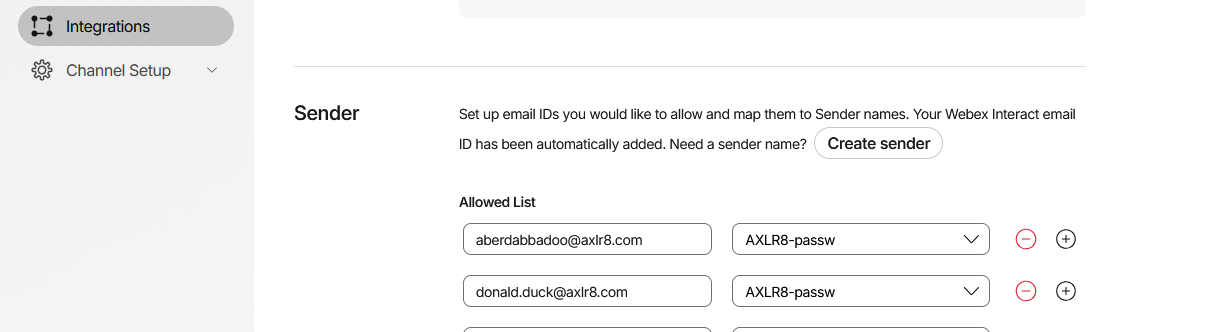
If you do not have a dedicated number (see below), you must mask the shared sending number provided by the service so that people cannot reply. This is on the first page together with rules for the characters you can use and up to 11 characters (like a phone number has 11 digits). For example, (see screenshot below) AXLR8 use “AXLR8-passw” for MFA.
You must allow a day for approval of this code by CISCO. It is a manual approval (so somone does not choose, say, “NATWEST” ro “BARCLAYS”. In general, you should allow a couple of days for various checking and approval processes.
You should then be able to get a few credits – maybe 10 at 3.9p each (£0.39).
All this must be done before you are able to send tests.
Allowed List
This refers to the list of email ddresses allowed to send email2text.
However, we cannot switch your AXLR8 system (see last section) over to WebexInteract till you add all your Allowed Senders (email addresses permitted by you to send SMS messages).
If you need other people to be authorised to send texts on your behalf, you go to left hand side menu -> Integrations -> Email to SMS
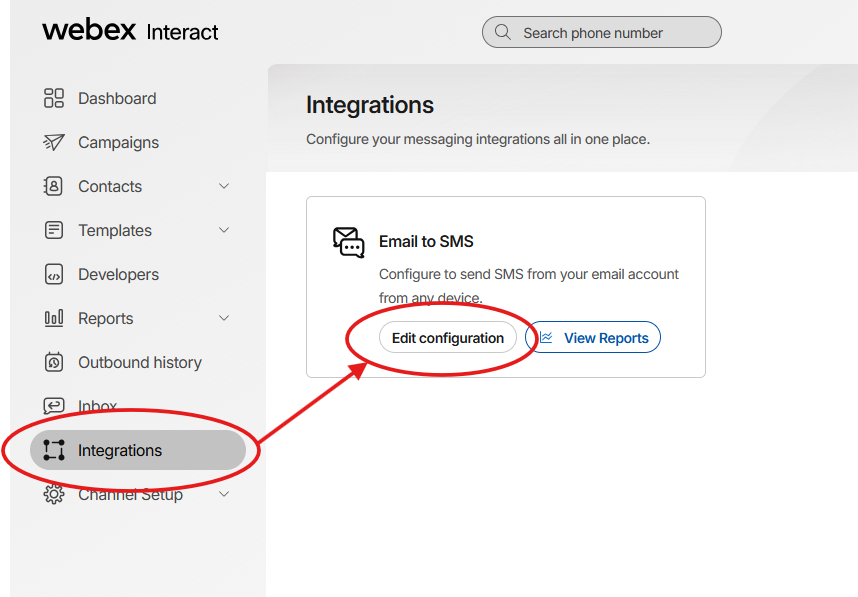
Scroll down to Sender and add to the Allowed List. Please note that the ones in the list below are not real examples so don’t bother trying to use them!
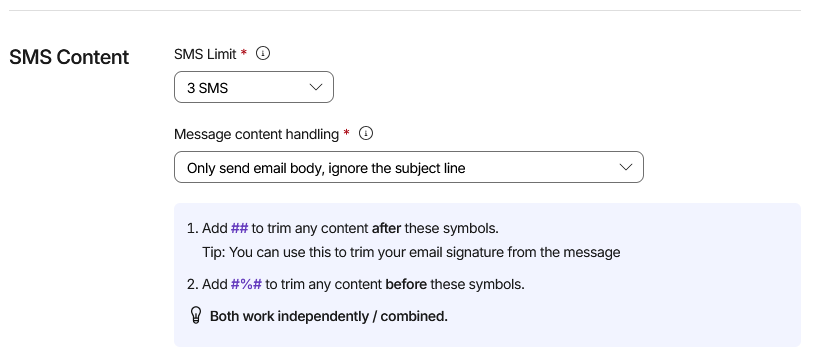
The default text length limit setting is one unit (160 char). You could keep it there or add units. Make sure you get the next settings right if you use emails to sms from Outlook as you may send out loads of units because it added your email signature (or even a whole email trail). Putting ## on the end of the text you want to send from your email may help this.
Testing your first email2SMS
To test your email2SMS send from an authorised Sender on your allowed list. Send it to mobiletelephonenumber@e2sms.webexinteract.com. If it does not arrive and the delivery failure email does not help you solve the problem, please send the delivery error message to WebexInteract Support department or use the Support Chat function.
Teammates
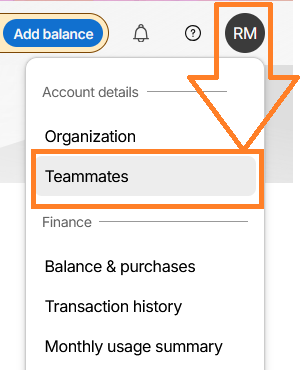
“Teammates” in WebexInteract parlance are co-administrators. Thus, you can have more than one person helping you with the set up and management of your account. They must be unique, emails and will need to pass a validation process. A person does not have to be a Teammate to send emails. That permission is granted in the “Allowed List” mentioned above.
Want to set up additional people who are able to access the portal as well so you can delegate management of the process? To do this just find the Teammates item in the Account menu at the top.
WebexInteract have support facilites and documentation on the site to help you. We have been able to help some clients but are out of time except for chargeable work, now.
Dedicated Number
If you buy a dedicated number, that will allow you to send and receive SMS messages in and out of your user email acccount as you can with the AXLR8 scheme now.
AXLR8 Changes
When you have set up your WebexInteract system, we can then change the required settings in AXLR8 to your database. We need up to a few days to test and check this. Your WebexInteract system settings must be complete by midnight on 23rd November as we have to enter the new serice into your AXLR8 server and Cisco need to transfer your text credits across. Cisco have rejected our requests to extend the time limit of 30th November.
We can only do this once at no charge. If we make the AXLR8 changes and then have to be change your database back because WebexInteract is not set up correctly, then we may need to charge a small fee for setting the system back and reseting it to WebexInteract when you have completed the setup steps above correctly.
Need Help to set up WebexInteract?
Don’t for get to ask for your present credits on TextLocal to be moved over. Make sure you count the credits before your transfer and check them afterwards to ensure you have the number of credits you bought and not the monetary value which is about half as Cisco have doubled the price.
If you do not have the resources internally to accomplish this task in time, AXLR8 have a package at £550 plus VAT to if you would like us to do it for you.
SMS Text Messaging
Background
This blog explains why clients need to move to the “new supplier”.
What to do
You need to register for a new account with a replacement SMS messaging system. There are plenty of alternatives (including not using text messaging any more). If you choose WebexInteract, they are part of the same company and will transfer your credits across. This is better than trying to use them up before the end of November.
Whatever alternative you choose, please check the list of compatibility requirements listed below.
Step 1 Register with an SMS Supplier
WebexInteract explains, below, how to setup with Webex
- Each client should create a new account on Webex Interact at www.webexinteract.com.
- They should export any important data (contacts, opt-out lists, etc.) from their Textlocal account.
- They will then import this data into their new Webex Interact account.
- Once their new account is set up, they can notify us, and we will arrange for any remaining credits to be transferred from their Textlocal account.
If you move to WebexInteract, you can transfer over your text credits from your TXTLocal account. (If you do not move to TextLocal they offer cash back which will buy you around half the credits you had.) This article, toether with their help text, explains how to creat senders on their new portal.
Step 2 Request AXLR8 to add your new SMS supplier
Contact AXLR8 Support with your chosen supplier and we will connect it up so it sends texts on your behalf.
If you use an alternative to WebexInteract, you will need to be sure it ticks the following three boxes in order for it to work.
Compatability Requirements for any AXLR8 SMS Service
- Dedicated telephone number for sending. Also, you may need the ability to deal with replies to text messages.
- Email2SMS facility whereby a message can be sent from you to
@ - Supports a protocol compatible with AXLR8.
You will also need AXLR8’s SMS Managed Service.
Any questions? Please report any problems you encounter to support@axlr8.com or call up on 01344 776500. We are happy to invest time with you working through any issues that arise up until 23rd November. After that, we will help as we can as the Cisco imposed deadline (30th November) will be close. See this FAQ if you need to pretest your new WebexInteract account technical readiness for AXLR8’s email2SMS
Email to SMS goal
As the name suggests, an email to sms conversion service sends texts. You set it up to receive your email containing:
- the mobile number of the recipient
- and the message you want to send.
The service then converts it to an SMS message (i.e. text message) and the recipient recieves it on their phone.
Here is how to set this up with WebexInteract.
Their portal is brand new and rather different from the portal provided by the other in-house Cisco provider. (Textlocal is also owned by Cisco but the service is being consolidated into WebexInteract.)
The portal is to be found here: www.webexinteract.com.
Open an account
You will be asked for an email which will also be your user name for their portal and you must create a password. You will also have to deal with a validation email so that Cisco can be sure it is a real email address. once that is done you have configured your “default email” e.g. james@mycompany.com
Adding a Sender
This is a confusing word as it gives teh impression you are setting up an authorised email to send. However, it is actually what the recipient sees as a sender.
If you do not have a dedicated number (see below), you must mask the shared sending number provided by the service so that people cannot reply. This is on the first page together with rules for the characters you can use and up to 11 characters (like a phone number has 11 digits). For example, (see screenshot below) AXLR8 use “AXLR8-passw” for MFA.
You must allow a day for approval of this code by CISCO. It is a manual approval (so somone does not choose, say, “NATWEST” ro “BARCLAYS”. In general, you should allow a couple of days for various checking and approval processes.
You should then be able to get a few credits – maybe 10 at 3.9p each (£0.39).
All this must be done before you are able to send tests.
Allowed List
This refers to the list of email ddresses allowed to send email2text.
However, we cannot switch your AXLR8 system (see last section) over to WebexInteract till you add all your Allowed Senders (email addresses permitted by you to send SMS messages).
If you need other people to be authorised to send texts on your behalf, you go to left hand side menu -> Integrations -> Email to SMS
Scroll down to Sender and add to the Allowed List. Please note that the ones in the list below are not real examples so don’t bother trying to use them!
The default text length limit setting is one unit (160 char). You could keep it there or add units. Make sure you get the next settings right if you use emails to sms from Outlook as you may send out loads of units because it added your email signature (or even a whole email trail). Putting ## on the end of the text you want to send from your email may help this.
Testing your first email2SMS
To test your email2SMS send from an authorised Sender on your allowed list. Send it to mobiletelephonenumber@e2sms.webexinteract.com. If it does not arrive and the delivery failure email does not help you solve the problem, please send the delivery error message to WebexInteract Support department or use the Support Chat function.
Teammates
“Teammates” in WebexInteract parlance are co-administrators. Thus, you can have more than one person helping you with the set up and management of your account. They must be unique, emails and will need to pass a validation process. A person does not have to be a Teammate to send emails. That permission is granted in the “Allowed List” mentioned above.
Want to set up additional people who are able to access the portal as well so you can delegate management of the process? To do this just find the Teammates item in the Account menu at the top.
WebexInteract have support facilites and documentation on the site to help you. We have been able to help some clients but are out of time except for chargeable work, now.
Dedicated Number
If you buy a dedicated number, that will allow you to send and receive SMS messages in and out of your user email acccount as you can with the AXLR8 scheme now.
AXLR8 Changes
When you have set up your WebexInteract system, we can then change the required settings in AXLR8 to your database. We need up to a few days to test and check this. Your WebexInteract system settings must be complete by midnight on 23rd November as we have to enter the new serice into your AXLR8 server and Cisco need to transfer your text credits across. Cisco have rejected our requests to extend the time limit of 30th November.
We can only do this once at no charge. If we make the AXLR8 changes and then have to be change your database back because WebexInteract is not set up correctly, then we may need to charge a small fee for setting the system back and reseting it to WebexInteract when you have completed the setup steps above correctly.
Need Help to set up WebexInteract?
Don’t for get to ask for your present credits on TextLocal to be moved over. Make sure you count the credits before your transfer and check them afterwards to ensure you have the number of credits you bought and not the monetary value which is about half as Cisco have doubled the price.
If you do not have the resources internally to accomplish this task in time, AXLR8 have a package at £550 plus VAT to if you would like us to do it for you.